

Installing the “CI HUB Connector” Plugin
For InDesign users, the “CI HUB Connector” plugin is always installed via the “Adobe Creative Cloud” application. This process also involves registering with the plugin’s manufacturer. As an alternative to the steps listed below, you can (as of October 2026) consult the plugin manufacturer’s documentation (see “How to install CI HUB Connector Professional in Adobe InDesign: new window”).
Installation via “Creative Cloud”
Open the “Adobe Creative Cloud” application either directly or from within Adobe InDesign via “Plug-ins” > “Manage Plug-ins.” On the left side, select “Stock and Marketplace,” then “All Plug-ins.” Search for “CI HUB Connector” and install the plug-in suitable for Adobe InDesign.
Logging in with “CI HUB ID” and Password
In the InDesign application, please select “Extensions” > “CI HUB” from the “Window” menu.
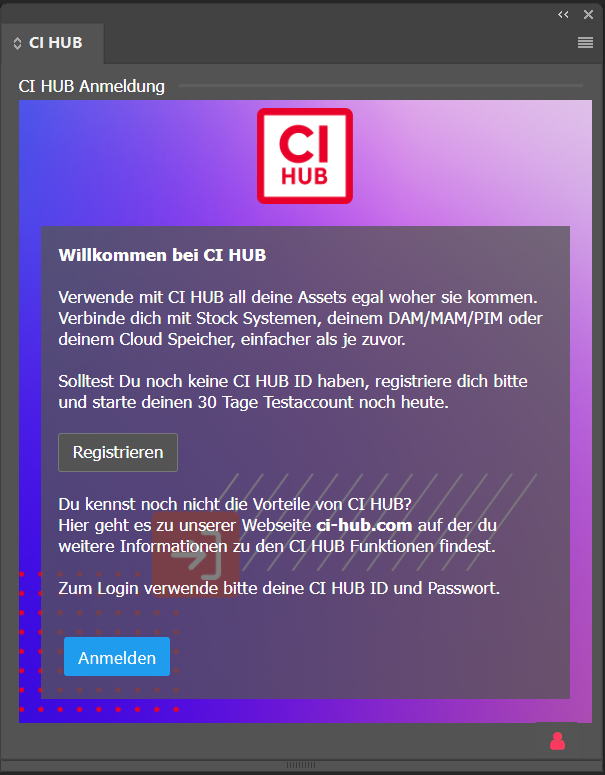
Clicking “Anmelden” opens a window in your default browser prompting you to log in. If you do not yet have login credentials for “CI HUB,” please register first.
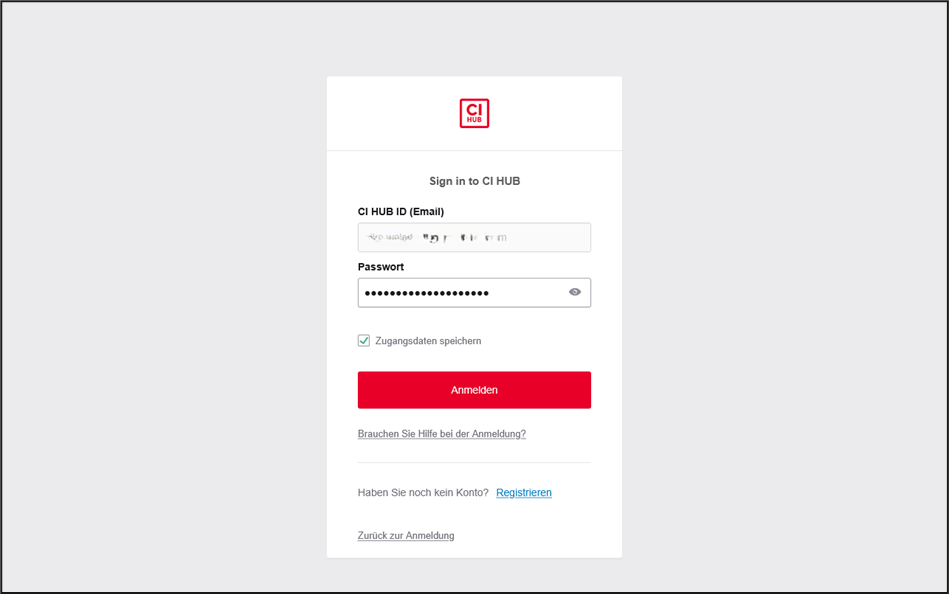
After successfully logging in, you can close the tab and return to the InDesign application.
Integration with the Fabasoft Xpublisher “Publishing” Solution
In the InDesign application—just as you did when logging in for the first time—select “Extensions” > “CI HUB” from the “Window” menu. If you wish, you can skip the introductory guide and go directly to configuring the available integrations.
To select the correct “Fabasoft Xpublisher” connection, it’s helpful to use the letter “x” to narrow down the options:
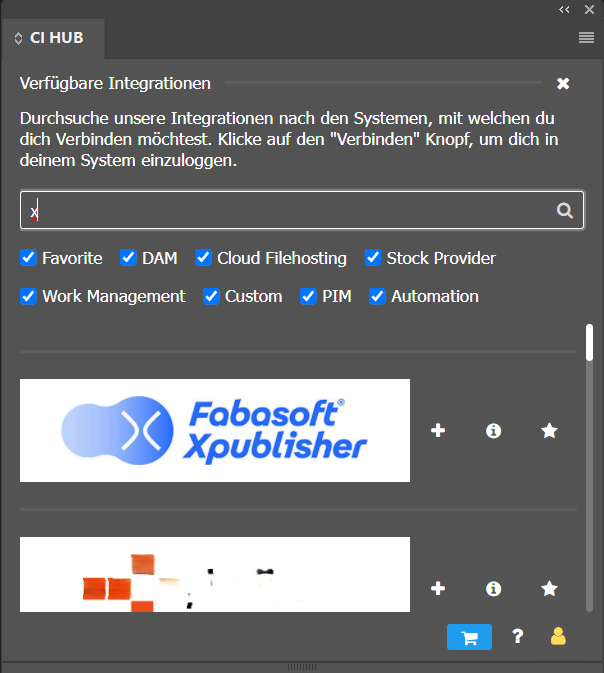
Clicking the “+” button to the right of “Fabasoft Xpublisher” opens the browser and prompts you to enter a username and login token.
NOTE: The required token is not the password for the Fabasoft Cloud! It is an API token for the “CI Hub Service.” For more information, please read the next section, “Requesting an API Token for a ‘CI Hub Service: new window.’”
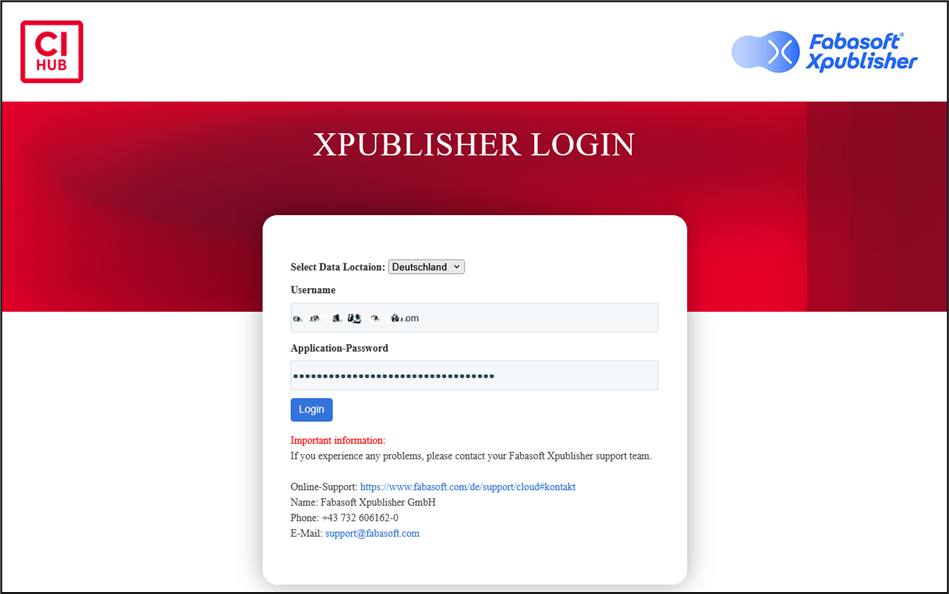
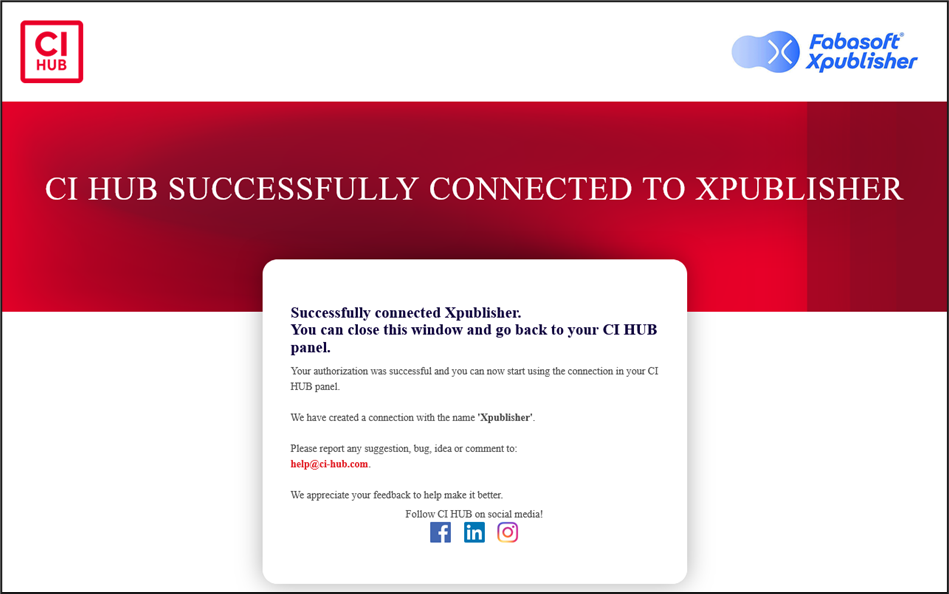
A message will confirm that you have logged in successfully.
Return to the InDesign application (after optionally closing the browser tab) to verify the successful connection between the InDesign plugin and the Fabasoft Cloud. The information displayed —apart from the “redacted” sections—looks something like this:
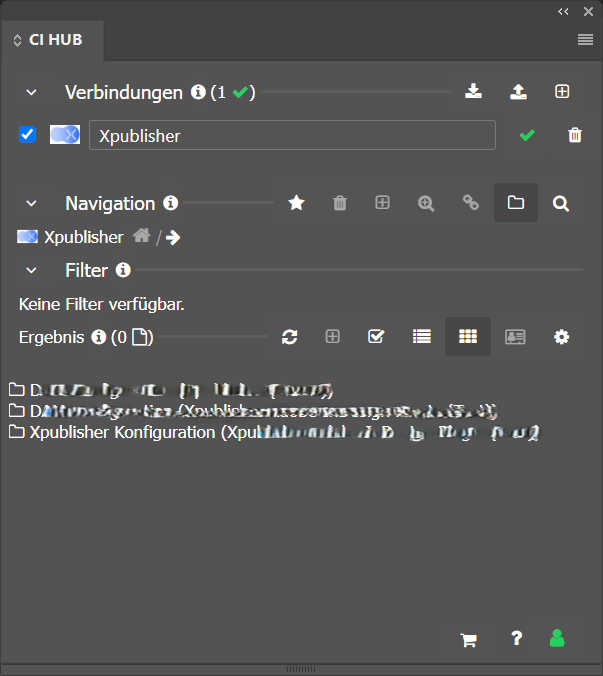
The one-time setup of the plugin is now complete, and you can now work directly from within InDesign using assets from one of the “Xpublisher” solutions.
Please note that the “FabaSphere Client” is still required to download InDesign files. If you also use images in the InDesign file that are not placed via CI HUB, the “Xpublisher Cloud Connector Plugin” for InDesign is also required. The latter also sets the page numbers to the corresponding values in the page layout when an InDesign file is opened.
Further steps are documented in the documentation provided by the “CI HUB” plugin vendor. A good starting point is How to Work with Assets in CI HUB Connector Professional: new window. Additionally, you’ll find further links in the Further Information: new window chapter.
Recommended Settings for the “CI HUB” Plugin
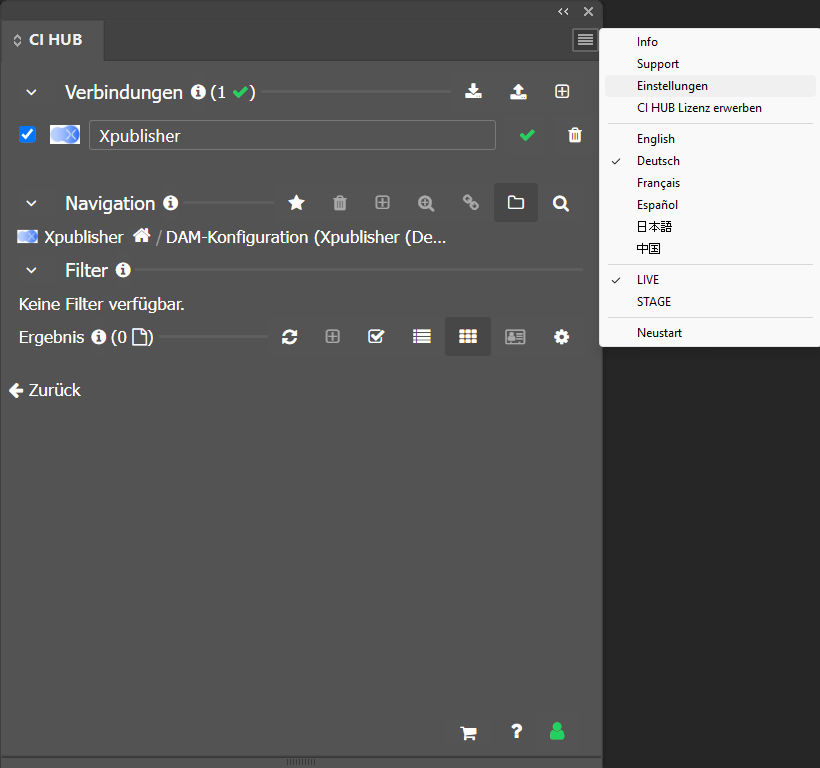
When working with “Xpublisher” solutions, there are currently two recommended settings. To view or adjust these, click the “hamburger” icon and select “Settings.”
In “Settings,” you’ll find the two options “Automatic status check when document is opened” and “Automatic relink after status check.” Both should be selected as shown.
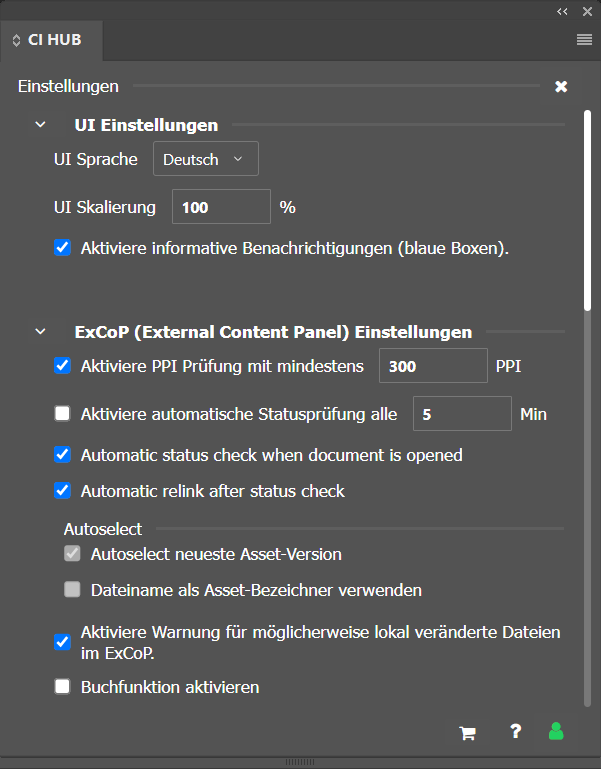
This ensures that InDesign automatically checks upon opening whether a newer image than the one placed is available in the asset library and, if necessary, automatically relinks it right away.
Requesting an API Token for a “CI Hub Service”
The InDesign plugin requires access to the Fabasoft Cloud—on your behalf. This is facilitated by a so-called API token.
Note: These tokens serve both for authentication and authorization and grant virtually the same access to data in the Fabasoft Cloud as you personally have. Therefore, keep your API token in a secure place! If you no longer need a token, you can invalidate it before it actually expires. You should definitely revoke it if access by unauthorized third parties can no longer be ruled out.
The token itself is a string of letters and numbers separated into groups by spaces. An example is “ZAHm ddwX BGYT 4QmW HFpq KYS1 4vHu”; the spaces are always part of the token.
You can obtain a valid “CI Hub Service” token by
- logging into the Fabasoft Cloud,
- on the home page, in the upper-right corner of your profile under “Settings,” select “Access for Applications,”
- clicking “New” in the “API Tokens” section,
- selecting the value “CI Hub Service […]” under “Valid for,” and
- enter a “Description” appropriate for the purpose as well as a “Validity Period”; for example, “CI-HUB-Token” and “1 month,” respectively.
After clicking “Next,” the token will be displayed once.