

Fabasoft Approve 2026 February Release
Find out more about new features and improvements in Fabasoft Approve.
Solution Area: Correspondence Management
The following new features await you in the correspondence management solution area.
Users
As a user you can expect the following new features.
Metadata Stamps
Fabasoft Approve now supports the application of metadata stamps to PDF documents. This feature allows predefined content to be permanently embedded directly into the PDF. A distinction is made between static and dynamic stamps.
Static stamps consist of uploaded images with fixed dimensions. Dynamic metadata stamps work similarly to signatures, but offer the flexibility of fields. They are defined as Word templates and can contain multiple fields whose values are automatically determined from document or object metadata when the stamp is applied. Optionally, certain colors in the stamp can be displayed transparently.
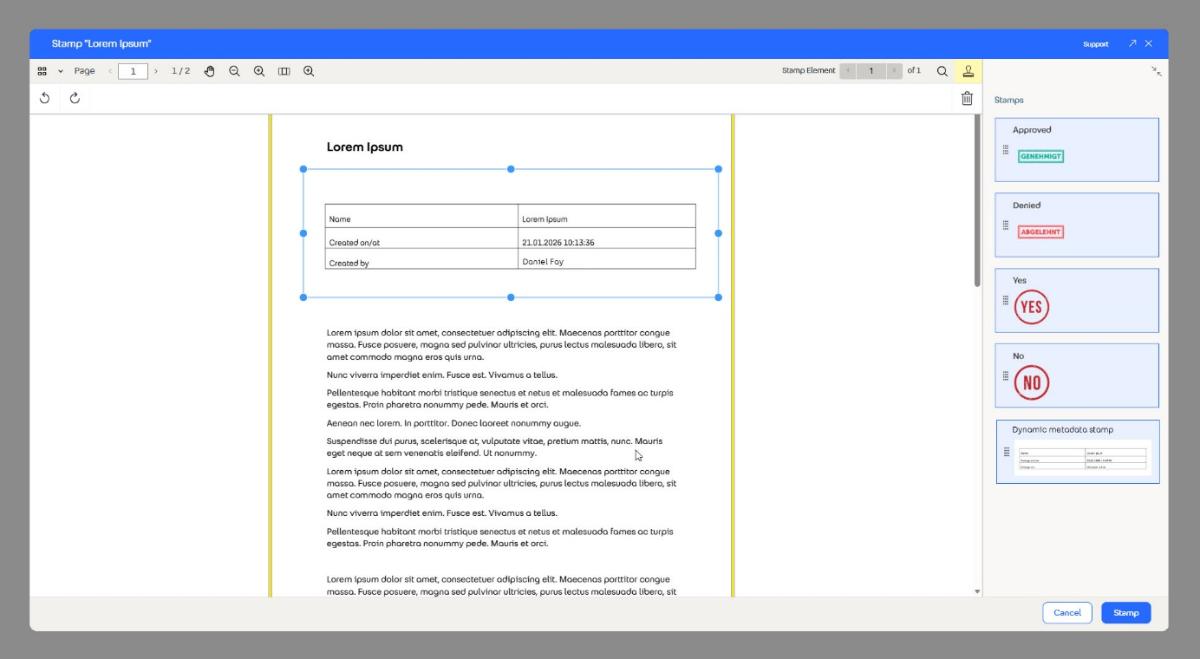
Metadata stamps can be applied to individual PDF files as well as to documents, actions, or open items, provided they contain stampable PDFs. The stamps are permanently embedded in the PDF and cannot be changed afterwards.
Stamps are managed in a configuration or in a room under the default settings. Here, under “Stamps,” you can choose between “Create Stamp”, “Create Stamp Folder” and “Define Stamp Categories”.
Common Innovations
Users
As a user you can expect the following new features.
Document Checks
Fabasoft Approve now enables document checks to be carried out with the support of artificial intelligence. Requirements for the check can be defined in a configuration or directly in a room as a template. These templates function like a checklist: they contain a structured list of document check entries that specify which content, criteria, or formal requirements are to be checked in documents.
Each check entry is formulated as a specific question and can be evaluated with defined answer and status values (e.g., fulfilled, accepted, or declined). The AI analyzes the relevant documents and provides comprehensible results for each checkpoint, including reasons and references in the document. Optionally, metadata of the checked object (such as a customer document number) can also be included in the question.

A pie chart provides an overview of the overall results of the document check and shows the percentage of documents that were, for example, fulfilled, accepted, or declined.
The defined templates can then be applied to selected objects. The template specifies the object classes for which document checks are possible.
To start a document check, the use case “Perform Document Check” is available for instances of the object classes specified in the template.